Posts

Install Windows from Booting USB Pen, Thumb or Flash Drive
Image
Normally, Windows is installed using optical media like DVDs and CDs but there are times when it is not possible to boot into the windows setup using disks probably because your DVD drive is not working or, if you are using one of those ultra-portable laptops, it is not there at all. To overcome this problem, one can either use an external DVD drive and install Windows normally or create a bootable pen drive to install Windows whenever needed. In this tutorial, we will discuss about the latter and learn how can we create a bootable USB drive for installing Windows XP, Windows Vista, Windows 7, Windows 8 or Windows 8.1 . As installing Windows from a flash drive is much faster than from a CD/ DVD, such an installation will also save time. This article assumes that your computer has a mother board which supports booting from USB drives. Most modern laptops and desktops support it. If you have bought your computer in the last 5 years, you do not need to worry about this...
Enable Task Manager disabled by Administrator or Virus in Windows

Image
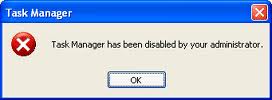
Windows Task Manager is used to view details about processes running on your computer. Since it can be used to terminate programs that are misbehaving or are viruses disguised in the form of harmless programs, most spyware and viruses disable it to prevent themselves from being closed through it. Some administrators also disable Task Manager to prevent users from closing important security programs like antiviruses and anti-malwares. In such situations, running the Task Manager will give the " Task Manager has been disabled by Administrator " error. However, there are some techniques you can use to re-enable task manager and close those harmful programs manually. This article contains few such simple techniques you can use to regain access to Task Managing privileges. Enable Task Manager from Registry in Windows 8, 7, XP or Vista Registry Editor is an inbuilt Windows tool that is used to modify registry keys which tell Windows how it should work. A simple registry...

How to Start Windows in Safe Mode Easily

Image
Safe Mode is a special diagnostic mode in which Windows runs with the minimum amount of features. As the features are limited, Windows does not load unnecessary startup items and runs only those files and drivers that are necessary for the basic functioning of the operating system. This allows users to remove recently installed programs that might be preventing Windows from starting correctly. As Windows does not start  unnecessary programs while in Safe Mode, Safe Mode can also be used to remove viruses and malware that cannot be removed normally without risking the infection getting worse. There are different ways in which you can get into the Safe Mode in Windows. They depend on the version of Windows you are using. Windows 7, Windows Vista, Windows XP and Previous versions If you are using these versions of Windows, you can try the following methods. The Trusted F8 key method 1) Restart your computer if it is on. 2) Right before the system starts ...

How to Secure a Wireless Wi-Fi Network

Image
With the world going wireless in every sphere of technology, the question of security has often been raised. The same is true for wireless internet networks or Wi-Fi networks with hackers and Wi-Fi intruders always looking for ways to gain access to unsecured networks. There are several reasons why you might want to protect your Wi-Fi network. Prominent among them include better privacy, reduced internet bills and faster internet speeds.This post contains few simple techniques you can use to make sure that your wireless network is as secure as it possible can be. Protect your Wireless Internet Network 1)  Encrypt your Wi-Fi Network : When you use a Wi-Fi network for accessing the internet, every piece of data you send and receive over the air can be easily snooped by anyone with the right set of tools. Packet sniffers can be used by even the most novice of users to sniff your data. This means that a hacker can not only see which websites are you accessing but also get ...

Watch ASCII Star Wars in Windows XP, Vista, 7 and 8

Image
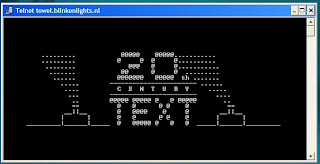
Every one of us has watched Star Wars on television, computer or in a theater. It is the same movie with aliens fighting each other for galaxies and such stuff. There is nothing new in it. But wait, have you watched an ASCII (American Standard Code for Information Interchange) version of Star Wars and that too in Windows using telnet ? A network protocol known only to computer wizards. Well if you have not, then you must do it now! There is a complete copy of Star Wars done entirely in ASCII characters that you can watch in the Windows operating system (or any OS that supports telnet). The only thing required to watch it is an internet connection; speed does not matter. To watch it on Windows XP,   Mac OS X and Linux Go to Start, Run. (Only for Windows users) Now type "telnet towel.blinkenlights.nl" without the quotes and press Enter. Users of Mac OS X and Linux can directly execute this code in the terminal window. On Windows 8, Windows 8....

Lock a Folder With Password Using Free Folder Protector

Image
All of us have some files and folders that we consider private. They can be anything from our business documents to pictures of friends and family. These are files that we don't want other people using our computer to know about. As Windows offers no way to protect our private information, most of us get in awkward situations when these files are discovered by unwanted people. Surely, you can store this information in a hidden folder. The only problem is that anyone can easily search the contents of a hidden folder using Windows Search itself. The only viable solution is storing this content in a password protected folder so that only those people knowing the password of the folder can access it. There are many folder locking programs available online but the problem is that most of the good ones are paid. Even if you do manage to get a good free one, you will be looked at suspiciously when people see a folder locker in the list of your installed programs. I...

Change your Processor's Name

Image
Problem: To, make the name change permanent, it was required to update the Processor Name String registry key every time Windows starts. Solution: It is very easy to change your processor name permanently by creating a registry key and placing a shortcut to it in the Windows start up folder. To do so, just follow the steps given below:- Steps :- 1.  Open Notepad. 2.  Copy and paste the exact code given below:- Windows Registry Editor Version 5.00 [HKEY_LOCAL_MACHINE\HARDWARE\DESCRIPTION\System\CentralProcessor \0 ] "ProcessorNameString"=" My Processor name 50000MHz " To change the processor name, edit the part of the code given in blue. Also understand that \0 in the above code should only be present if Windows store your processor name at that location. Open the Registry Editor and navigate to the above mentioned keys to check whether or not to include the \0. 3.  Click on File Menu, click on Save As and select "All Types" in ...